
Musician guide
Getting in
Somebody on your sound team invites you. The invitation arrives as a link, an email, or a QR code held up on a phone or a screen — all three lead to the same place.
- Open the link, or point your phone's camera at the QR code and tap the notification that appears.
- Create your account when asked. Use whatever email address you actually read — that's how you'll get back in later.
- You land straight in your own mix. There is no second sign-in screen and nothing to install.
After the first time, go to the sign-in page and sign in. You'll be taken to your mix automatically.
Put it on your home screen
“You haven't been added as a musician yet”
Your mix
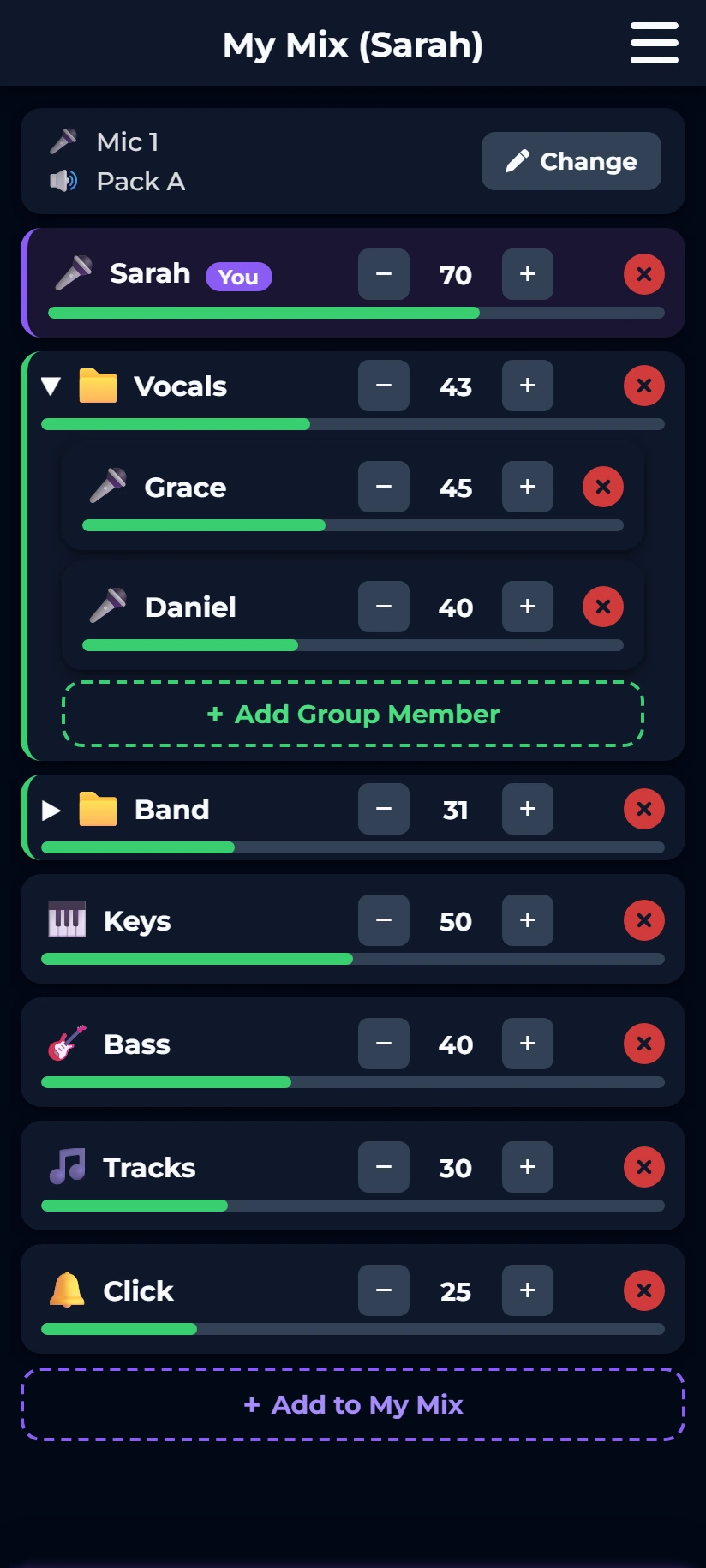
The main screen is your monitor mix. Each row is one sound you can hear — a voice, an instrument, a click track, or a whole group of them. The bar underneath shows how loud that sound is for you.
Your own microphone is one of those rows, marked You. That one is how much of yourself you hear back, which is usually the first thing worth getting right.
Louder and quieter
Tap + to hear more of a sound and − to hear less. Each tap moves it by five, from 5 up to 100, and the bar is the same number drawn out. It's a proportion of how loud that source gets — not decibels, and nothing you need to convert.
To silence something completely, take it out of your mix with the red ✕, or use the mute button if you have advanced controls on.
Changes take effect immediately, in your monitor only. Nobody else hears the difference, and you cannot break anyone else's mix.
Adding and removing sounds
Tap + Add to My Mix at the bottom of the list (or ⋮→Add) to see everything available to you — other musicians' microphones, instruments, and any backing tracks or click your sound team has set up. Tap one to add it.
To take something out, tap the red ✕ on its row. If you remove something by accident, an Undo button appears for a few seconds.
Groups
A group is several sounds behind one control — “Vocals” or “Band”, say. Tap the ▶ arrow to open it and adjust the people inside individually; use the group's own + and − to move all of them together.
Make your own with ⋮→Add Group — useful if you'd rather have one “everyone else” control than eight separate rows.
The screen stays on
When something looks wrong
| Your monitor is muted | You won't hear anything at all. Tap Unmute. If it happens again straight away, the sound team has muted it at the board — ask them. |
|---|---|
| Solo: (a name) | You're listening to one sound on its own and everything else in your mix is silenced. Tap Restore to bring the rest back. |
| Your mix is empty! | Nothing has been added yet. Tap the message to start adding instruments and voices. |
| You don't have a monitor yet | No in-ear pack or wedge is assigned to you, so there's nothing for a mix to come out of. Tap the message to choose one, or ask the sound team. |
| The sound board is offline | The app has lost contact with the mixer. You can still see your mix but not change it. This is for the sound team to fix — see the note below. |
Read-only mode
Your microphone and monitor
The bar at the top of your mix shows which microphone and which monitor pack you're currently holding. Tap Change — or ⋮→My Setup — to pick different ones.
- Choose your Microphone from the list. These are the names your sound team has given its inputs, like “Wireless 3” or “Lav Mic 1”.
- Choose your Monitor — the in-ear pack or wedge you're using.
- Tap Save.
Your mix comes with you. Pick up a different microphone and a different pack next week and every level you set stays exactly where you left it — that's the whole point of the app.
So does the way your voice is treated. Whatever your sound team has dialled in for you on the board — the EQ, the compression, the filter that keeps the rumble out — moves onto the new microphone as you pick it up. You shouldn't have to ask anybody to set your voice up again just because you're holding a different microphone.
It arrives over about ten seconds rather than all at once, so swapping microphones in the middle of a song isn't heard in the room as a jump. Your monitor mix doesn't wait — that's there as soon as you save.
Which pack is mine?
If a warning appears here
Advanced controls
Everyone starts with the simple view. Turning on ⋮→Advanced Controls adds four things, and the choice sticks on that device until you turn it off again.
| My Master Level | One control above the mix that turns everything up or down together, without changing the balance you've built. |
|---|---|
| Mute and solo (M / S) | M silences one sound; S silences everything except it. Both are yours alone, and both are easy to forget about — the banner at the top of the mix is there to remind you. |
| Reorder | Drag the ⠿ handle to move a row, so the things you adjust most are at the top. |
| Level meters | A thin bar under each row that moves with the sound, so you can see which row is which without asking anyone to play. |
Making it easier to see
⋮→Theme offers Dark, Light and High Contrast. A dark stage and a sunlit platform want different answers, so this is per-device — your phone and the sound booth's laptop remember separately, and nothing about it affects anyone else.
Common problems
| I can't hear anything | Check for the Your monitor is muted card at the top, then your master level if you have advanced controls on, then that your pack is switched on and turned up. If your mix is empty, add sounds to it. |
|---|---|
| I hear only one instrument | You have a solo active. Tap Restore in the banner at the top. |
| My mix went back to empty | Your monitor was probably unassigned — the mix has nowhere to come out of, so the app takes you to device selection. Pick a monitor and your saved levels return. |
| “Reconnecting…” won't clear | Your phone has lost its connection. If you're on the venue's Wi-Fi, try mobile data instead; the app works over the internet too. |
| The controls are greyed out | The board is offline or still starting up. Tell the sound team; there's nothing to fix from your phone. |
Anything else is worth raising with whoever runs sound where you play — they can see your mix from their own screen and change it with you standing there. If they're stuck too, they have the troubleshooting guide.