
Admin guide
The roster
Signing in as an admin opens the roster. Musicians are grouped under headings — Singers, Instrumentalists, or whatever folders your organisation has set up — and each row shows a person's name, the microphone they're holding and the monitor they're listening on.
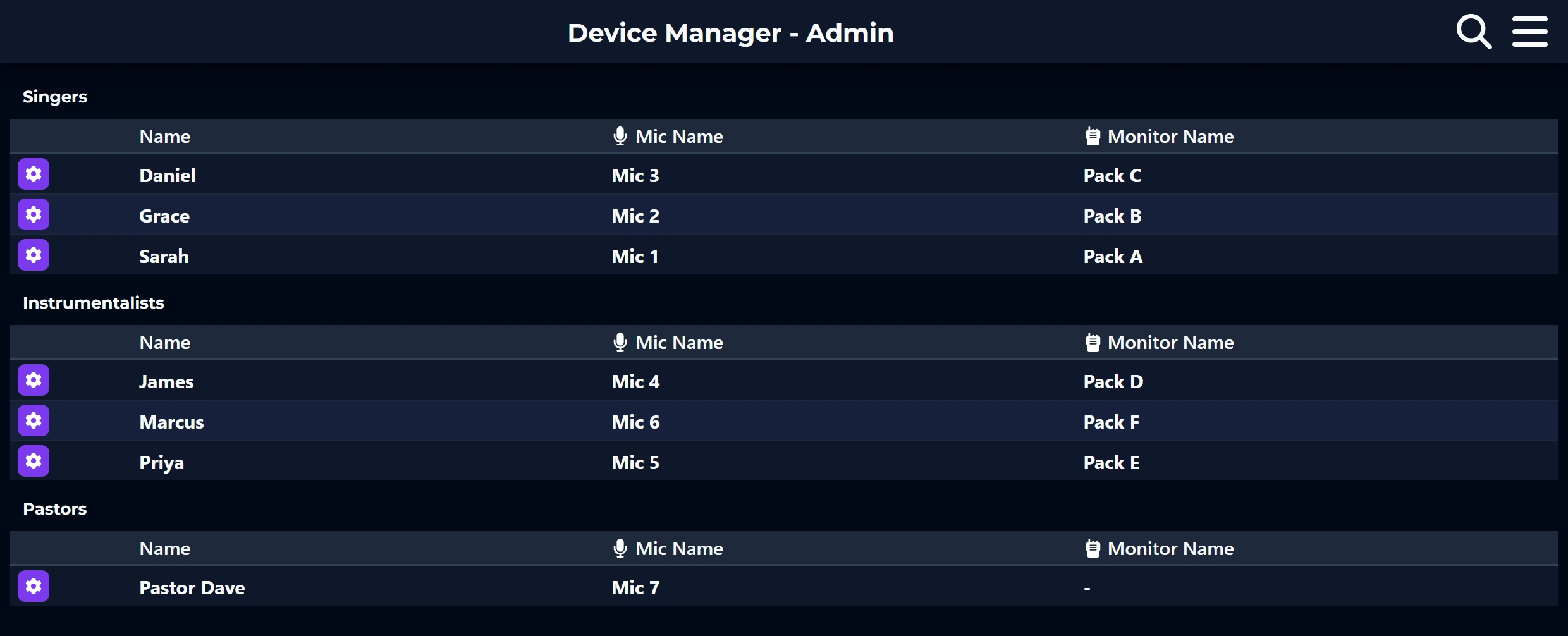
- Tap a row to open that musician and change their equipment.
- The search box filters by name, microphone, monitor or group — the fastest way to find one person on a long roster.
- A ⚠️ on a row means something is wrong with that person's assignment. Open them and use Repair.
Who appears here
Assigning microphones and monitors
This is the job most days consist of: handing this week's equipment to this week's people.
- Tap the musician's row to open the edit window.
- Pick their Microphone and Monitor from the lists.
- Set their Folder if they're in the wrong section of the roster.
- Tap Save. The board is updated immediately, and their saved mix is applied to the new equipment — with the channel processing eased across over about ten seconds rather than jumped, so a hand-over mid-song isn't heard in the room.
Hand equipment straight over
What moves with the musician
Saving doesn't just re-point a name at a channel. The app takes the channel processing the musician had on their old microphone and writes it onto the new one, so a voice that was dialled in last week still sounds dialled in on a different input.
| EQ | All four bands, complete: type, frequency, gain and width. |
|---|---|
| Compressor / gate | The whole dynamics block, including threshold, ratio, attack, release, makeup gain and whether it's switched on. |
| Preamp | Trim, phase invert, and the high-pass filter with its slope and frequency. |
| Monitor mix | Their levels into their own monitor, and their voice into everybody else's, at the levels each of those people asked for. |
| Channel labelling | The channel is renamed to the musician, and given a consistent icon and colour so the board reads like the roster. |
What stays with the socket
The same applies in reverse: a microphone somebody has just put down stops carrying their sound into everyone's monitors, rather than being left playing the last person who held it.
The hand-over is eased in, not jumped
Microphones change hands mid-service, and writing a whole new EQ and compressor onto a live channel in one go is heard in the room as a lurch. So the processing is moved across gradually instead, over about ten seconds: the channel starts where the last person had it and settles into the new one's, which the room hears as the sound settling rather than as a jump. You don't switch this on or wait for it — save the assignment and carry on.
- Everything else still lands at once. The name on the channel, and the monitor mixes — the new holder's own mix, and their voice in everybody else's — are right the moment you save. Only the front-of-house processing takes the ten seconds.
- Settings with no half-way value don't creep. An EQ band's type, the compressor's ratio and mode, and the high-pass filter's slope and on switch have nothing in between two settings, so they change at the start rather than during the fade — and where one of them changes what the settings beside it mean, that whole block moves together.
- A second hand-over during the first is fine. Reassign the same microphone again while it's still settling and the new fade picks up from wherever the sound has got to. The half-way state is never saved as anybody's own settings, so an interrupted hand-over can't follow either musician to the next microphone they pick up.
The buttons in the edit window
| Sends | Opens that musician's monitor mix so you can adjust it for them — useful when they're on stage and you're not. |
|---|---|
| Copy | Duplicates this musician's whole setup onto another person. Good for a second vocalist who wants what the first one has. |
| Invite | Sends this person an invitation so they can sign in and control their own mix. Only shown for people who don't have an account yet. |
| Repair | Re-applies everything this musician should have to the board. Use it when a row shows a warning, or when someone's mix doesn't match what the app says it is. Only appears when there's something to fix. |
| Remove | Takes the musician off the roster. Their account stays; only the roster entry and its equipment go. |
Editing someone's mix
Open a musician and tap Sends to see exactly what they hear. The screen is the same one they use, so what you change is what they get, live.
- + Add Send puts another source into their mix.
- ⋮→Add Group bundles several sources behind one control — a “Vocals” or “Band” group saves a volunteer from managing eight rows.
- ⋮→Play Test Sound plays a tone into that musician's monitor, so you can confirm which pack is on their belt without shouting across the room.
- ⋮→Advanced Controls adds mute/solo buttons, drag-to-reorder, live level meters and a master level.
Build a good default once
Inviting musicians
An invitation gives a musician an account, which is what lets them adjust their own mix from their own phone.
- Choose ⋮→Invite Musician, or open an existing roster entry and tap Invite.
- Enter their name, and their email address if you have it. Tick Also make them an admin only for people who should be able to manage the team, servers and subscription.
- Tap Create Invite. You get a QR code, a link, an email box and a Share… button.
- Hold the QR code up at rehearsal, or send the link. It works on any phone with no app to install.
Invitations you've created but nobody has accepted yet are listed on the website dashboard, where you can re-open the same code and send it again.
Switching between admin and your own mix
If you both run sound and play, ⋮→Switch to My Mix moves you between the roster and your own monitor mix. The same menu item switches you back.
Being an admin doesn't change how your own mix behaves — the advanced controls preference and your saved levels follow your account either way.
When the board is offline
If the X32 is switched off, unplugged, or still starting up, the app doesn't go blank. It shows the last configuration the board confirmed, marks it clearly, and refuses changes rather than pretending they worked.
- A banner explains why, and every control that would write to the board is out of reach.
- Settings stays fully editable on purpose — it's where you go to fix the connection.
- While the board is downloading its configuration (a percentage in the connection status), changes are refused for the same reason. Wait for it to finish.
See troubleshooting for getting it back.